






 Back
BackConnecting a DSLR Camera to a Tablet
23 Aug 1970
Note: This information is provided as a reference and does not imply that Juniper Systems will provide full support for the use of any specific third-party device or software with a Juniper Systems product.
If you have a DSLR camera with Wi-Fi and Bluetooth capabilities, you may be able to connect your camera and tablet to save your pictures directly to your tablet. The following documentation shows how to connect a Canon camera with Wi-Fi and Bluetooth capabilities to a Windows tablet. These steps may be adapted for other DSLR cameras with these capabilities or tablets running Android.
To connect a Canon camera to your Windows tablet,
From your tablet, download the EOS Webcam Utility from the Canon website.
With your tablet in landscape mode, install the app.
Note: Your device's resolution must be greater than 1024 X 768.
Leave the EOS Webcam Utility open on your tablet.
From your camera,
Open the Menu.
Select Wireless Settings.
Select Wi-Fi/Bluetooth Connection.
Select Remote Control (EOS Utility).
Select Add a Device to connect to.
Select your tablet.
From your tablet,
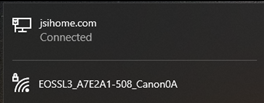
Connect to your camera's Wi-Fi hotspot.
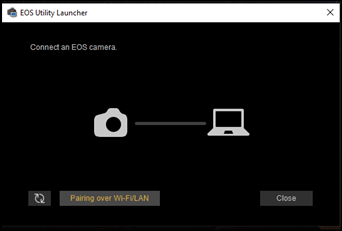
In the EOS Webcam Utility, tap Pairing over Wi-Fi/LAN.
In the pop-up window, select your camera and tap Connect.
The DSLR camera controls display on your tablet with the option to use the tablet as a live viewfinder. To take a picture, tap Live view shoot.
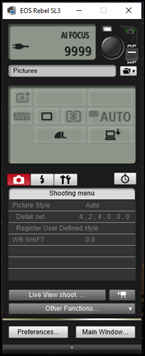
The camera app saves the picture to the Pictures folder on your tablet.
Note: With the picture saved to your tablet, you can quickly attach it to a point on a Uinta map. For more information, see Adding a Point to a Uinta Map.